
Inspections

Record inspections by tap or by voice, track treatments and harvests — optimized for the BeePulse mobile app

What You'll Learn

  • Quick-Log: inspect a hive in 30 seconds from your phone
  • How to create and record hive inspections
  • Recording queen and brood status
  • Tracking treatments and varroa counts
  • Logging harvests and photo attachments
  • Using the inspection timeline on charts
  • Adding standalone notes for hives and apiaries
  • Voice inspections: describe the hive out loud and the app fills in the inspection
  • What is sent to the AI services, and how to withdraw your consent
  • The journal: everything you did, in order, with filters
  • A hive over time, with or without a smart scale
1

Quick-Log: 30-Second Inspections

Quick-Log is the fastest way to record an inspection, from the BeePulse app on your phone. You tap one answer per screen, in the order you would check a frame, and you are done in about 30 seconds. Each Quick-Log calculates a health score for the hive. It works offline too: the inspection is saved on your phone and sent automatically when the signal returns.

Select a step to see where to tap
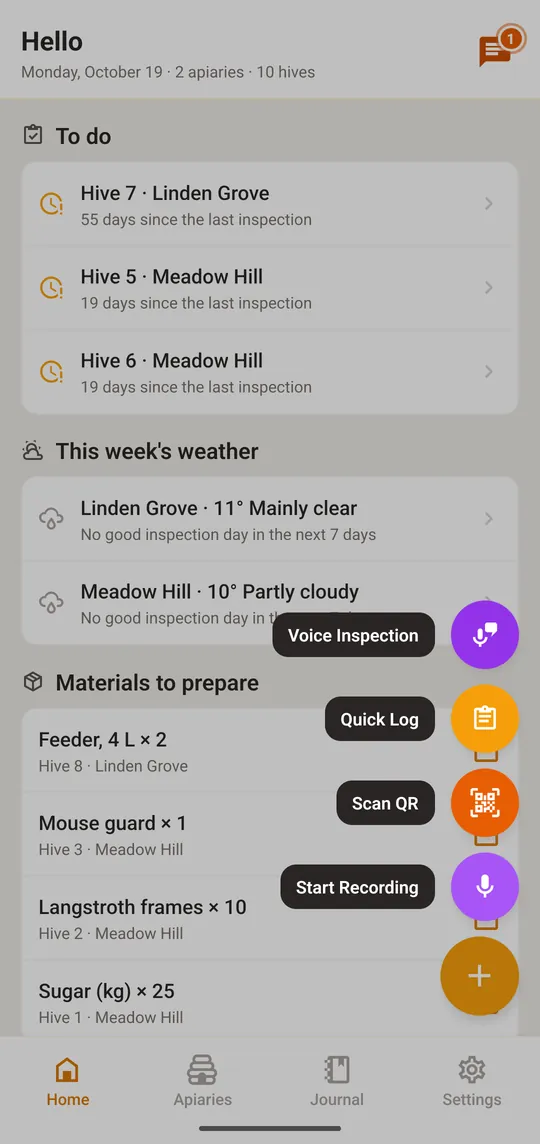
In the app, tap the + button and choose “Quick Log”, or scan the hive’s QR code (then the hive is already selected)
Use the BeePulse app on your phone for the best experience. Print QR codes for your hives from Hive Management and scan them to start a Quick-Log instantly at the apiary.

Health Score

After each Quick-Log, BeePulse calculates a health score from 0 to 100 based on your observations. The score helps you quickly identify which hives need attention.

  • 85-100: Excellent
  • 70-84: Good
  • 50-69: Fair
  • 30-49: Poor
  • 0-29: Critical
2

Voice Inspection: just say it

Instead of tapping, describe the hive out loud: the queen, the brood, the frames, the stores, any problem and what you did. BeePulse turns your words into a finished inspection that you can check before saving. It is made for the apiary, with gloves on and a smoker in your hand.

Select a step to see where to tap

Tap the + button and choose “Voice Inspection”, or open the hive and tap “Voice Inspection”
Speak naturally, there is no fixed script. Anything the app could not place is kept in the notes as free text, so nothing you said is lost.

Limits and offline use:

  • A recording can last up to 10 minutes on the free plan and 30 minutes on Pro
  • The free plan includes 3 voice inspections per month; Pro has no limit. Typed inspections (Quick-Log) are unlimited on every plan
  • Without signal the recording is saved on your phone and processed when you are back online
3

Your recording and the AI: what is sent, and how to withdraw

Voice inspections and voice notes use two external services. Before your first recording the app explains this and asks for your permission. If you tap “Not now”, nothing is recorded or sent, and the rest of the app works as usual.

What is sent, and to whom:

  • AssemblyAI transcribes the recording into text
  • Anthropic organizes the text into an inspection, or gives a note its title
  • Only the recording and its text are sent, and only when you record. Nothing else from your account is sent

How to withdraw your consent, at any time:

Select a step to see where to tap
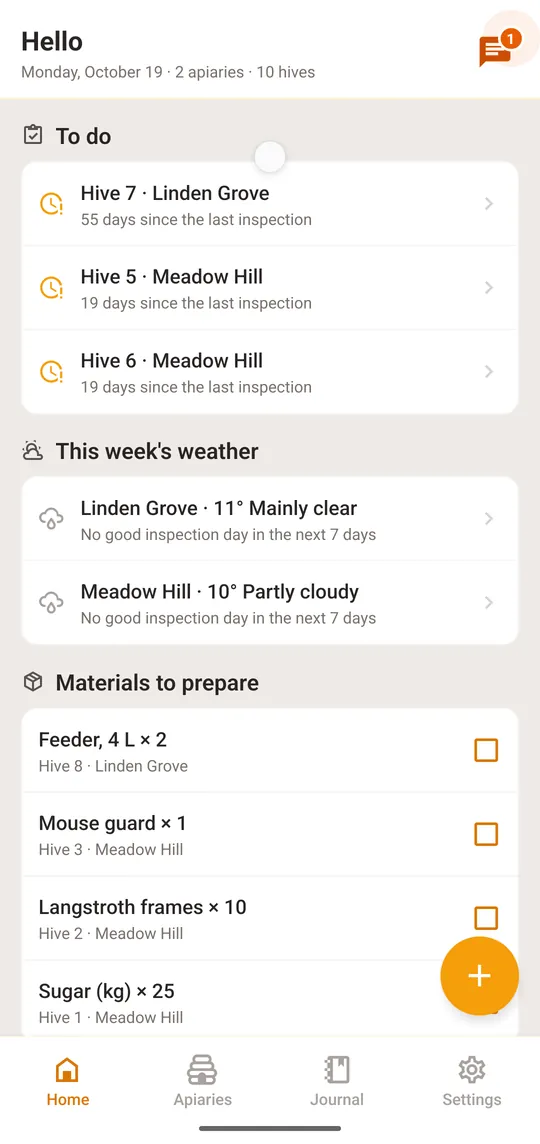
Open “Settings” in the app
4

Creating a Full Inspection

Full inspections help you track the health and productivity of each hive over time. You can create inspections from the BeePulse app on your phone or from the web dashboard on your computer.

  1. Navigate to 'Inspections' in the sidebar menu
  2. Click 'New Inspection'
  3. Select the hive you want to inspect
  4. Choose the inspection type: routine, treatment, feeding, harvest, queen check, problem, or note
  5. Set the inspection date (defaults to today)
  6. Fill in the relevant sections and click 'Save'
5

Attaching photos

Photos are a Pro feature. You can attach up to 10 photos per inspection (for visit-specific shots like brood pattern, queen, harvest) and up to 20 photos directly on each hive (for casual snapshots — winter cover, exterior, anything you want to remember).

  1. On mobile, after saving a Quick-Log inspection, tap 'Add photos' on the result screen
  2. On the hive detail page, tap '📷 Take photos' on the second action row — opens hive photos directly, no inspection required
  3. Tap any past inspection in the hive card to manage its photos (add, view, delete)
  4. Each captured photo shows in a fullscreen preview with Keep / Retake buttons before it's saved
  5. Photos compress to ~150 KB and upload directly to encrypted cloud storage — fast even on field data
Use inspection photos for moments during a specific visit (frame shots, treatment evidence). Use hive photos for the bigger picture (exterior, winter setup, location) — they don't belong to any one inspection.
6

Recording Queen & Brood Status

The queen and brood sections help you track the reproductive health of your colony.

  • Queen Seen: Did you spot the queen during inspection?
  • Laying: Is the queen actively laying eggs?
  • Queen Cells: Any queen cells present (supersedure or swarm cells)?
  • Queen Marked: Is the queen marked? What color?
  • Eggs: Are eggs visible in cells?
  • Larvae: Are larvae present and healthy?
  • Capped Brood: Is there capped brood?
  • Brood Pattern: Solid, spotty, or none?
  • Frames of Brood: How many frames contain brood?
A solid brood pattern with eggs, larvae, and capped brood on multiple frames indicates a healthy, productive queen.
7

Tracking Treatments

Record every treatment to build a complete treatment history for each hive. This is a Pro feature.

  • Product: The treatment product used (e.g., oxalic acid, Apivar strips)
  • Method: How the treatment was applied (strips, vaporization, drizzle, dust)
  • Dose: The amount applied
  • Applied Date / Removal Date: Track the treatment window
  • Varroa Count: Record mite counts for monitoring effectiveness
Treatment tracking, including varroa count history, is available on the Pro plan. Upgrade to access these features.
8

Logging Harvests

Keep accurate records of every harvest to track production across seasons. This is a Pro feature.

  • Honey (kg): Weight of honey harvested
  • Wax (kg): Weight of wax collected
  • Propolis (g): Amount of propolis gathered
  • Frames Harvested: Number of frames taken
  • Photos: Attach up to 5 photos per inspection
Compare harvest weights with the scale data to verify accuracy and spot production trends.
9

Using the Inspection Timeline on Charts

The inspection timeline overlays your inspection records on the monitoring charts, creating a powerful visual connection between what you observed and what the sensors recorded.

  1. Open the Charts page from the sidebar
  2. Select a hive that has both sensor data and inspections
  3. Click the 'Inspections Timeline' toggle to show inspection markers
  4. Hover over markers to see inspection summaries
  5. Click a marker to open the full inspection details
The timeline is especially useful for correlating weight drops with swarm events, or weight gains with nectar flows noted during inspections.
10

Standalone Notes

Use the Notes section on the To Do page to jot down observations, reminders, or plans that aren't tied to a specific inspection.

  1. Navigate to the 'To Do' page from the sidebar menu
  2. Scroll down to the Notes section and click 'Add Note'
  3. Write your note — it can be as long as you need
  4. Optionally link it to a specific hive or apiary using the dropdowns
  5. Click 'Add' to save. Your notes appear in the table below
  6. Delete a note at any time by clicking the trash icon
Notes are available on all plans, including the free Start plan. Use them to track things like 'order new frames' or 'check hive #3 next week'.
11

Your apiary journal

The journal is the notebook that writes itself: every inspection, voice note, note and material you add is listed here, newest first, grouped by day. Nothing to fill in separately.

Select a step to see where to tap

Tap “Journal” at the bottom of the app
12

A hive over time, with or without a smart scale

Every hive has a section that shows how it has been doing: the weather at the apiary and everything you did at the hive, on the same time axis. It is complete without a scale; a smart scale only adds its own readings to it.

Select a step to see where to tap
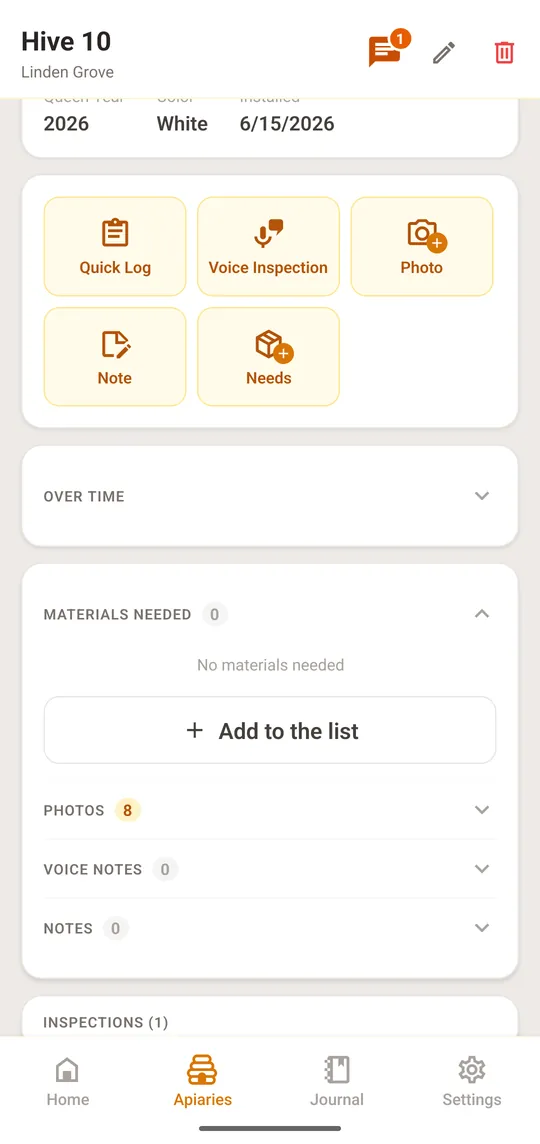
Open a hive from “Apiaries” and tap the “Over time” section

What's Next?

  • Weather Forecasts

    Set up weather forecasts to plan your inspections around the weather.

  • Charts & Analytics

    Explore interactive charts with sensor data, weather overlay, and inspection timeline.

  • Need Help?

    Contact our support team for assistance with the inspection logbook.