Materials Needed
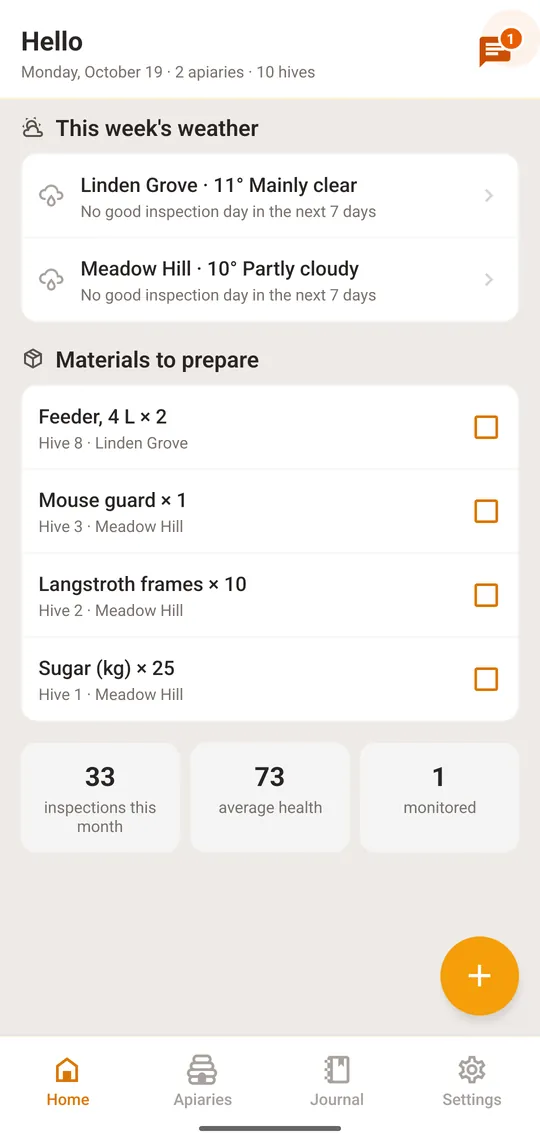
Keep a list of what each hive needs: frames, a feeder, a queen. See it on Home, tick it off, add to it by hand or by voice, on the phone and on the web.
What You'll Learn
- What a material need is, and where you see the list
- Seeing what to bring and ticking it off on your phone
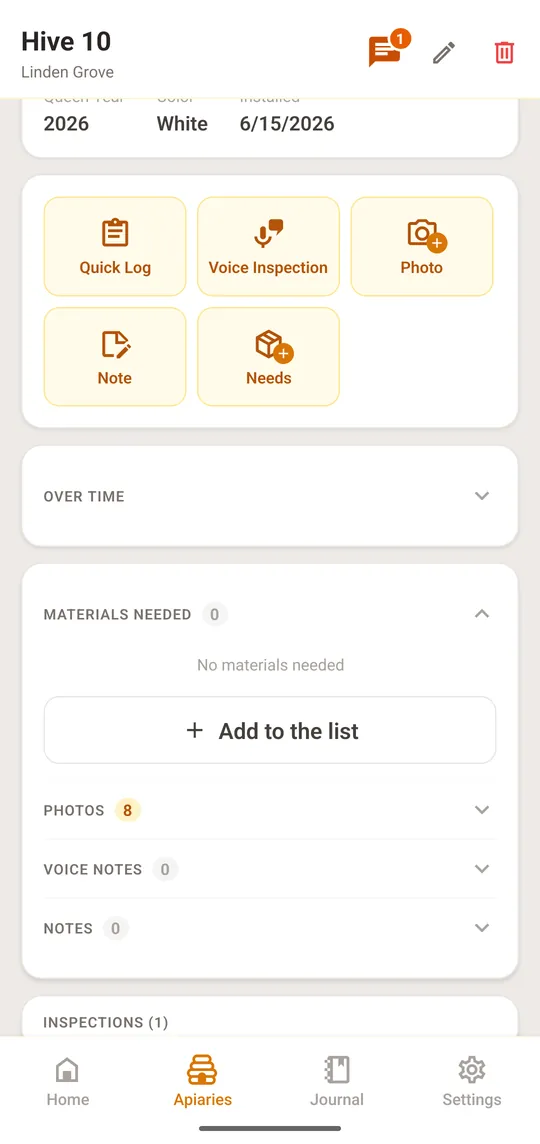
- Adding a need to a hive
- Adding needs by voice during an inspection
- The table on the web app, and exporting it
What a material need is
A material need is something you have to buy or prepare for a hive: frames, a feeder, sugar, a new queen. BeePulse keeps them as a list per hive. The phone shows what is still pending on Home, so you know what to bring to the apiary, and you tick items off when they are done. The same list is on the web app, as a table per apiary that you can export.
See what to bring and tick it off
Select a step to see where to tap
Add a need to a hive
Select a step to see where to tap
Add needs by voice
During a voice inspection, just say what the hive needs, for example “this hive needs two frames and a feeder”. The app adds it to the list on its own. On the web, entries that came from a voice inspection are marked as such, so you can tell them from the ones you typed.
On the web app
On the web app (the same account), the sidebar has “Materials Needed”: a table for each apiary. Rows are your hives, columns are the types of material, and the last row adds up the quantity needed of each.
- Click a cell to see its details, then edit, resolve or delete an entry
- Use the add button to pick an apiary and a hive, name the material (names you used before are suggested), set the quantity and add notes
- Changing a material's type moves it to the matching column, or creates a new one
- Setting the quantity to 0 marks the material as resolved; use the check button to resolve it quickly, and the undo button to bring it back
- Export the list as an Excel file (one sheet per apiary) or print it as a PDF from your browser